
Theme and template testing are recommended before pushing a new theme or template live in order to test the impact of the site changes.
Adding a new theme test
1. Navigate to the Themes section and check that all draft themes are installed on Visually.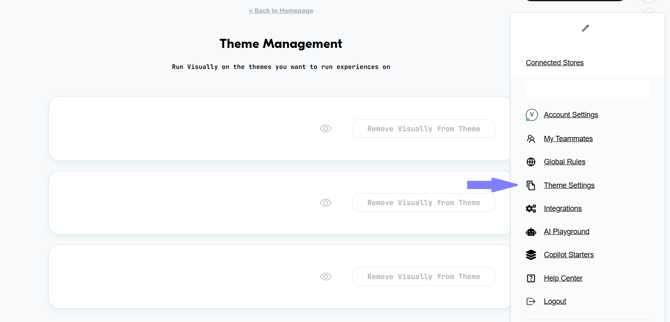
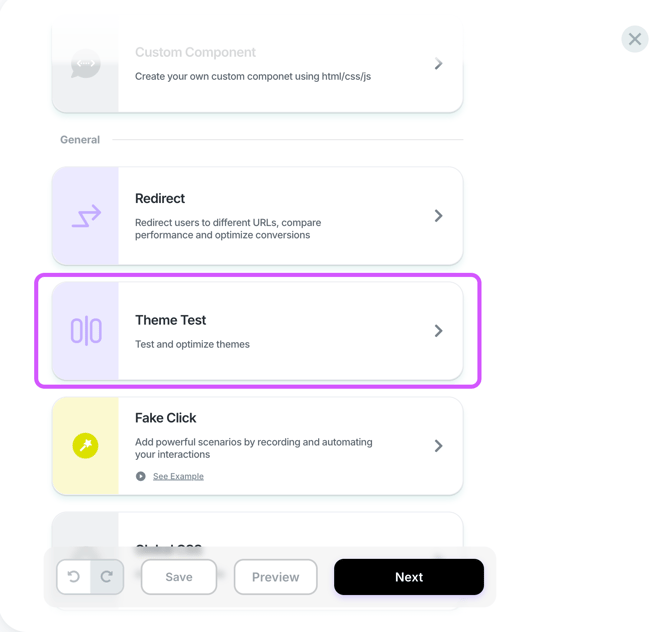
2. Open a new experience and select the Theme Test option from the menu.
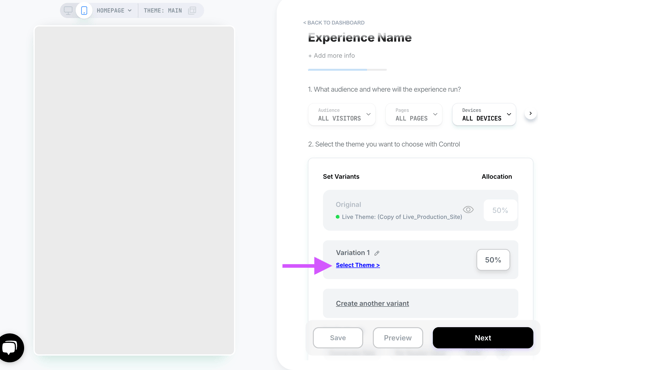
3. Click on Select Theme and set the theme you are looking to test against the main theme.
Important: Make sure the theme_test.sdk is enabled on both the live theme and the draft theme being tested. This ensures the Theme Test runs correctly and prevents Shopify's theme preview bar from appearing to visitors assigned to the draft theme during the test.
4. Set the allocation for the Variation (the changes you've made). To get statistically significant results, it's recommended to have a 50/50 allocation.
5. Set the goals and primary goal you would like to measure. Once all is set, hit the Save button and preview it. If all is good to go, click on Publish.
During a theme test, you can to use &disableThemeTest=1 to disable the test locally. This will allow you to view other draft themes within Shopify or the current live theme.
Notes
-
Only one theme test can be run at a time.
-
You can test up to 6 themes in a single test. To set additional themes, select Create another variant. Please keep in mind that the more variations, the longer it will take to reach statistically significant.
-
To switch the view of the tested themes, click on the eye icon next to the allocation section.
-
We always recommend in place experiences over theme tests. You can read more about that in this article.
Do not uninstall during a live theme test. Once a theme test is completed, you must pause the for ~3 days to ensure all the customers have a smooth experience and are pushed back to the current live theme instead of the draft theme. Reach out to us if you wish to uninstall the app and have a theme test live, we will guide you to ensure your customers have a smooth experience.