
Adding a post-purchase offer can increase the Average Order Value (AOV) by incentivizing customers to add more items to their purchase through tailored promotions or discounts immediately after their initial transaction.
In this article you'll find:
- Setting Visually as your Post-Purchase app
- Setting up your Post-Purchase Experience
- Identifying Post-Purchase Orders in Shopify
- Limitations & Considerations
- Managing Failed Payments on Post Purchase Items
- Related articles
Before you start
Shopify will only allow you to have 1 Post-Purchase app to run in your store at any time
How to set Visually.io as your Post-Purchase app:
- On your Shopify Admin, go to Settings > Checkout
- Find the "Post-purchase page" at the bottom of the page, and choose Visually app
Setting up your Post-Purchase Experience
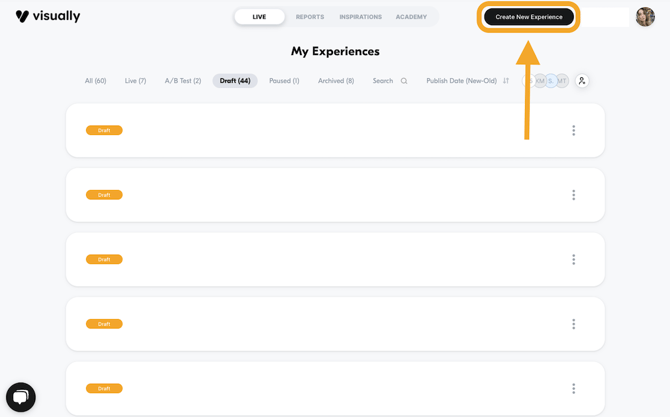
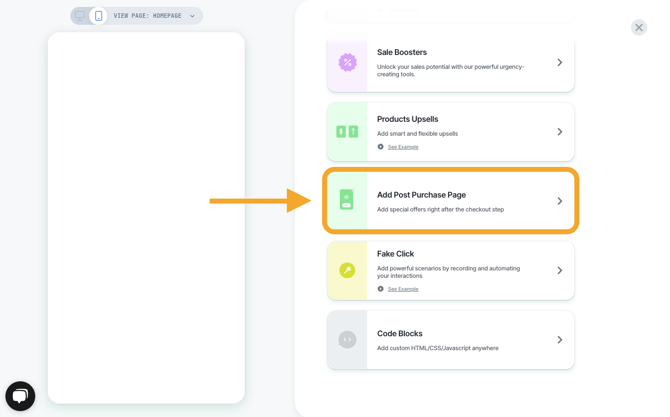
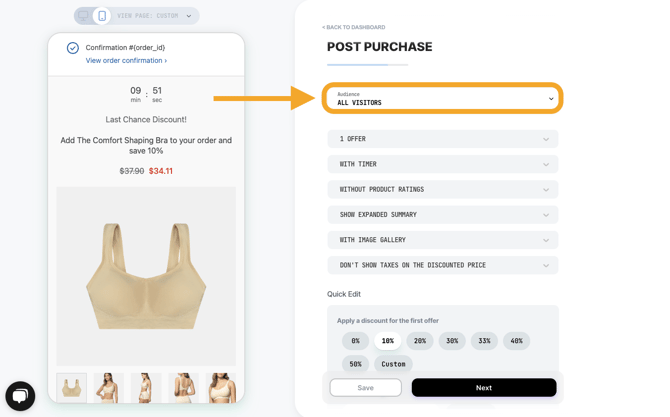
3. Define the audience. You can have multiple post purchase upsells active at any time, but make sure that the Audience settings don't conflate with one another by setting a custom audience.
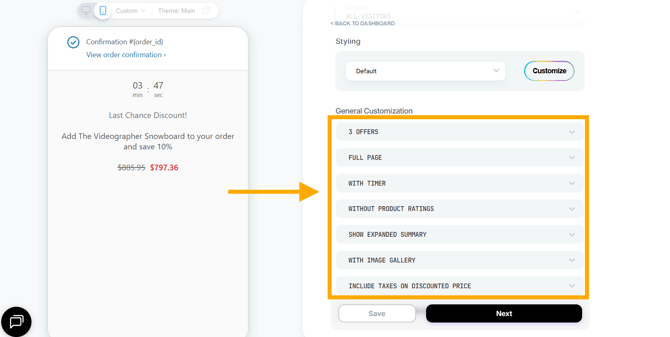
Available layouts include:
- Full Page
- Grid
The number of products you can display depends on the layout:
- Full Page: up to 3 offers
- Grid or List: up to 4 offers
Grid can be used on desktop while List provides a mobile-friendly presentation.
You can also configure additional display options such as the timer, product ratings, and product summary.
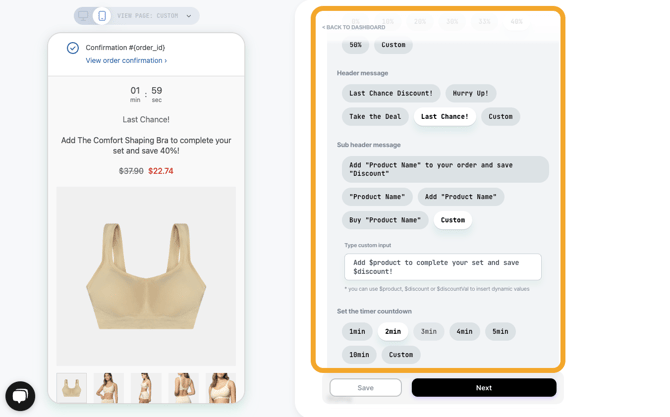
The Post Purchase will inherit the checkout theme style on live
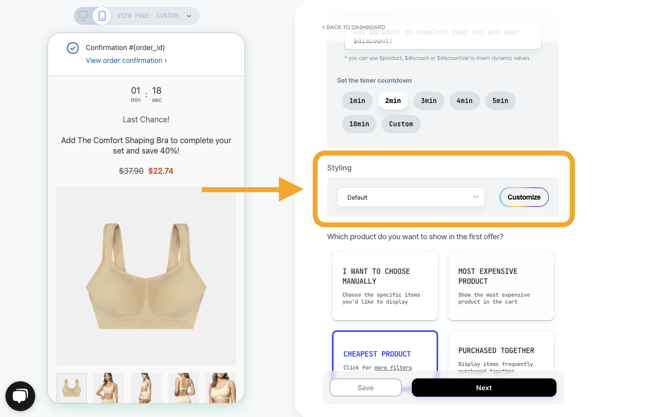
7. Select which products to offer. You can select manually or use a set of rules.
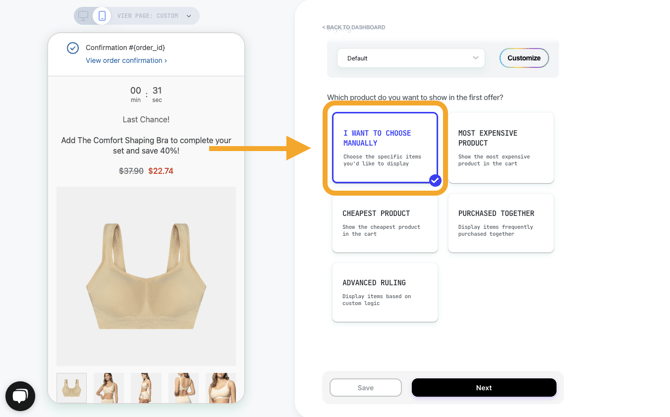
8. Choose whether to pre-select a variant by toggling Yes or No. 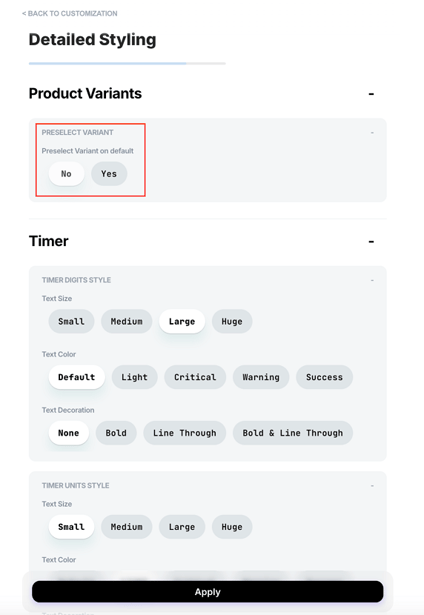
9. You’re all set! Save the changes and click on the 'Next' button to publish.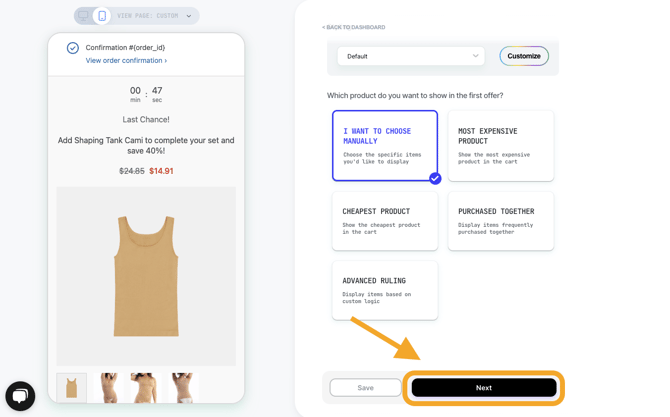
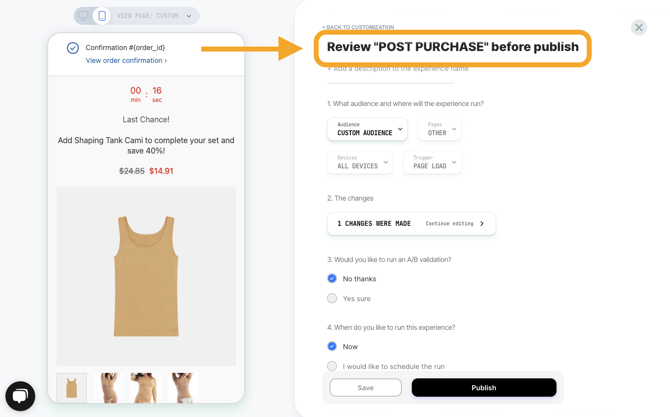
11. Choose if you want to schedule the experience to publish during a specific time.
Identifying Post-Purchase Orders in Shopify
Orders associated with a Visually Post-Purchase offer are automatically tagged with visually_post_purchase in Shopify.
You can use this tag to easily identify and filter orders associated with your Visually Post-Purchase experiences.
Limitations & Considerations
Reading Shopify's official guide on limitations will help you understand when and how the Post Purchase feature works in Shopify. Here are some that we would like to callout:
- Post-purchase upsell offers won’t be surfaced on orders with duties and multiple currencies.
- Post-purchase offers can be displayed in English only.
- Post-purchase upsells can't be paid with installment providers.
-
Shopify runs the post-purchase page runs inside an isolated frame and therefore does not allow you to set a Custom javascript as the trigger/custom audience (e.g. a custom audience by a javascript or data layer variable).
-
You can't create a post-purchase offer that modifies a subscription on an order with an existing subscription, adds a subscription to an order with an existing subscription or converts a one-time purchase into a subscription order.Post-Purchase order tagging: Orders associated with a Visually Post-Purchase offer are automatically tagged with
visually_post_purchasein Shopify, making them easier to identify and filter. No additional setup is required.
Important Notes
- The Post-Purchase Experience inherits your checkout theme styling when live.
- You can display up to 3 offers in Full Page layout or 4 offers using Grid/List layouts.
- Headers and subheaders can be customized for individual offers.
- Customers can be targeted using the available Post-Purchase audience settings.
- Product variants can either be preselected automatically or require the customer to make a selection.
- The default pricing setting includes taxes.
- Although multiple offers can be displayed in the Post-Purchase Experience, accepting multiple separate upsell offers within the same Post-Purchase flow is not currently supported.
Shopify Fulfillment Holds and the Countdown Timer
When a Post-Purchase offer is presented, Shopify automatically places the order on a fulfillment hold while the customer completes the Post-Purchase flow.
This hold is managed by Shopify and is separate from the countdown timer configured in your Visually Experience. Shopify releases the hold when the customer reaches the order status page, or automatically after up to 60 minutes if they don't return.
Note: The Visually countdown timer is a visual element designed to create urgency and does not control or shorten Shopify's fulfillment hold. For example, setting a 2-minute timer does not mean the order's fulfillment hold will be released after 2 minutes.
Managing Failed Payments on Post-Purchase Items
If a shopper accepts a post-purchase offer but their payment is declined (either by their bank or by the payment processor) the post-purchase item will still be added to the order and marked as Partially Paid. Shopify then emails the customer with a link to complete payment and if payment success, an additional transaction appears and the order updates to Paid.
To help keep orders clean, Visually includes an optional setting to remove the unpaid post-purchase items, allowing the order to return to a “Paid” status after a short time buffer. This toggle is disabled by default and available in Account Settings for stores with active post-purchase experiences.
Related articles
How to save and re-use widget styling
A/B testing a Post-Purchase experience
For further assistance or questions, reach out on the chat support widget or via support@visually.io.