
With Visually’s Event Tracking, you can see exactly how users interact with your site, without writing any code or involving a developer. Track clicks on buttons, links, CTAs, and other elements to measure engagement beyond your main goals.
Learn more about it in our release here.
Why isn't my custom tracking event included in Clicks or CTR?
Where to Find Your Custom Event Reports
Event Tracking Tips & Limitations:
How to Set Up Event Tracking
Follow these steps to start tracking custom interactions on your site:
Step 1: Start Tracking
You can begin tracking in two ways:
-
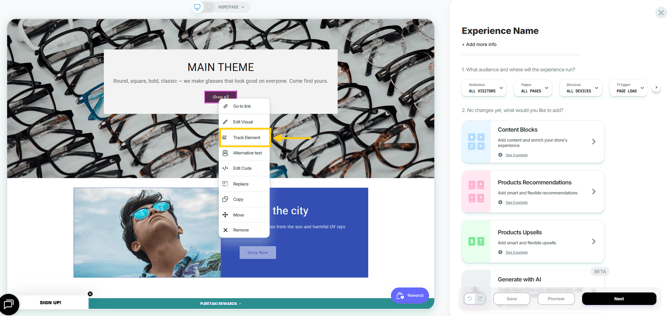
Select an Element: Hover over the element you want to track. Once highlighted, click Track Element.
-
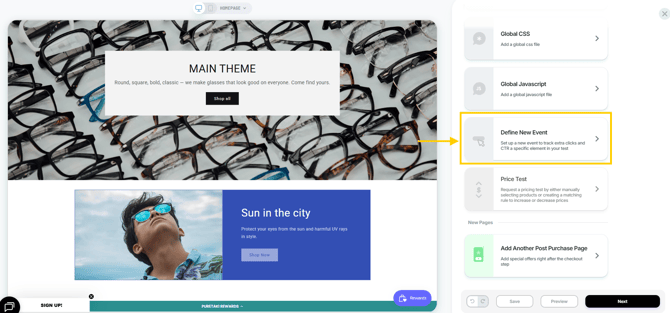
Add Blocks Section: Alternatively, if no location has been selected yet, go to the blocks section and choose Define New Event.
Step 2: Configure Your Event
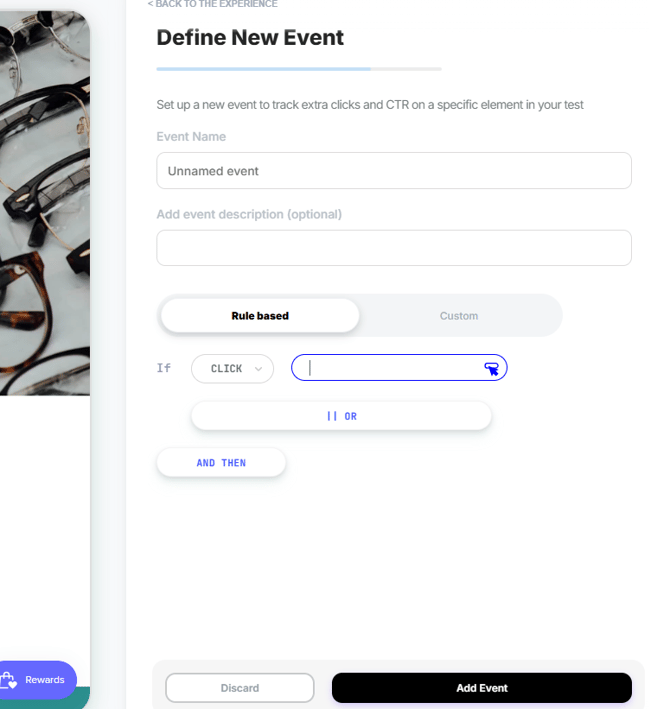
After clicking Define New Event, a section will appear where you can:
-
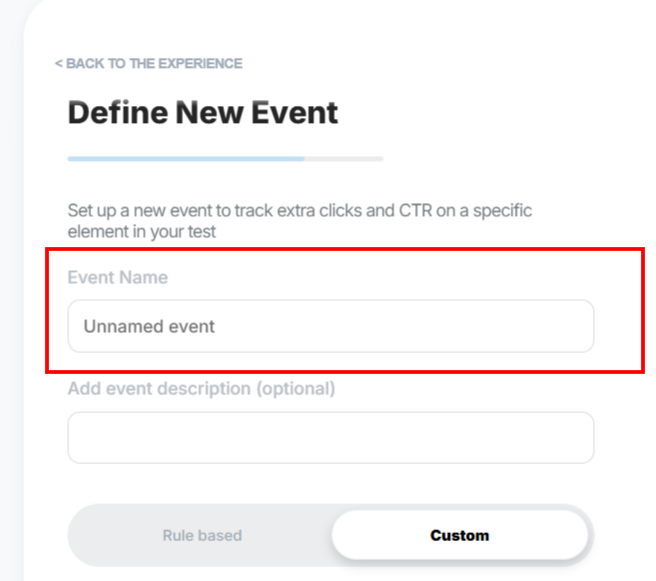
Enter an Event Name and optional Description
-
Set the Element: Use the Rule-based mode to choose an element you want to track
-
(Optional) Set a Custom JS trigger to define specific conditions for firing the event
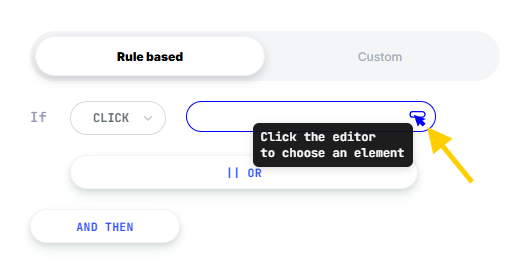
Tip: Need to track a different element? Click the button in the element textbox to select a new element .
Custom JS:
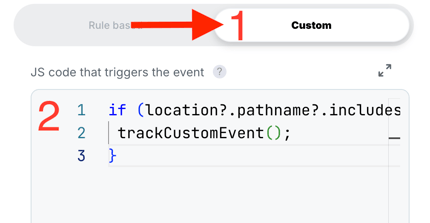
You can create your own JS code to trigger events. Click into the 'custom' option and add the JS code.
Tip: You can also track visits to custom pages in your website. In this example below, we are tracking visits to collection pages:
trackCustomEvent();
}
Save the above and then wait a few minutes for it to reflect in the site.
Managing Your Events
All your events are managed directly in the Changes list. You can choose where your event should apply:
-
All Variations: The event will apply to every variation, including the control.
-
Control: The event will only track interactions on the original site elements.
-
Specific Variations: The event will only apply to the variation(s) you select. You can track different events for each variation to measure what matters most.
Why isn't my custom tracking event included in CTR?
CTR only measures interactions with Visually's native clickable widgets. Custom tracking events added to AI Blocks are tracked separately and do not contribute to the CTR metric.
Each custom tracking event has its own dedicated metric on the Reports page. To make reporting easier, we recommend assigning a unique Event Name to each tracking event. This makes it easier to identify and distinguish events, especially when multiple tracking events are used within the same experience.
Where to Find Your Custom Event Reports
To view data from the custom events you've added, navigate to the Report page and scroll down until you see the "Would you like to see more reports?" section.
- Click the custom event data pill.
- The selected custom event metrics will be displayed at the top of the report alongside your other key metrics.
Event Tracking Tips & Limitations:
-
Each experience supports up to 12 custom events.
-
Keep your event names short and clear, this makes reports easier to read.
-
Events are specific to the experience where they are created and won’t carry over to other experiences.
- Event names can be updated at any time without resetting the event’s existing data. The name is simply a label used to identify the event in Visually. Renaming it does not change the underlying metric, so historical and new data will continue to be reported under the updated name.
You can confirm your event is set up correctly by following the steps in this article
Tip from the experts: When should I set up click tracking?
There is no single rule for every test. The right setup depends on what you are changing and what you want to learn. If you think tracking click, hover or sequence behavior will help you interpret results later, add tracking during setup. It is often easier to collect that data from the start than wish you had it after the test is live.
We’ve got your back.
Email us at support@visually.io or reach out on chat for help with setup or troubleshooting.