
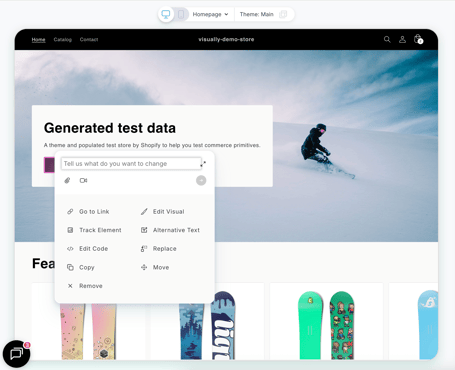
1. Select the Section You Want to Edit
-
Hover over any section or component in the editor.
-
Click on it to reveal the AI editing bar, where you can instruct the AI on the changes you want to make.
2. Build Your AI Prompt
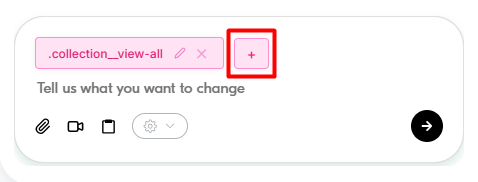
- To edit additional elements, hover over another component and select it in the sidebar.
-
Once you submit your instruction, the AI generates the initial edit.
-
After the edit is applied, you can:
-
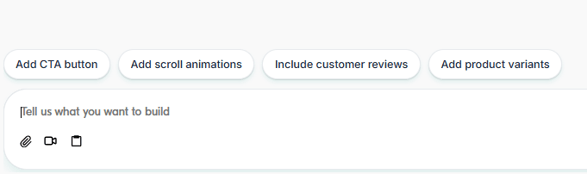
Use the suggested prompts at the bottom of the sidebar to refine the changes.
-
Or type your own instructions to further customize the edits.
-
Choose your AI Model:
You can choose which AI model you'd like to use to generate your results. All models are enhanced by Visually with real-time data and contextual insights.
- Vercel V0 1.5 Md
- Gemini 3 Flash
- Gemini 3.5 Flash Lite
- Gemini 3.7 Flash
- Gemini 3 Pro
- Claude Sonnet 4.5
- GPT 5.4 Mini
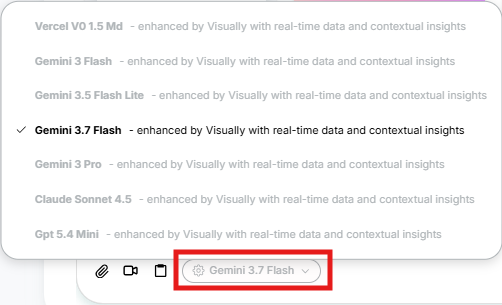
- Important: Once you begin building an experience, the selected AI model is locked for that experience and cannot be changed or updated. Be sure to choose the model you'd like to use before generating your experience.
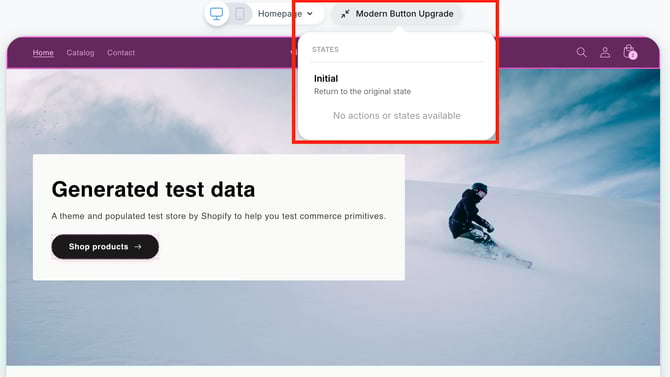
3. Manage Component States
-
You can view and change the state of any component you’ve edited.
-
Supported states include:
-
Initial
-
Any other states available for that component
-
-
Adjusting component states lets you see how edits behave in different scenarios and make any necessary refinements.
Tips for Best Results
-
Hover over each component before editing it: Before selecting a component in the Copilot sidebar for additional edits, hover over it in the editor so Copilot knows exactly which element to apply your changes to.
-
Start with clear instructions for the best initial results.
-
Use suggested prompts or custom instructions after the first edit to fine-tune your changes.
-
Always review component states to ensure edits look and function as expected.
Having Trouble?
We’ve got your back.
Email us at support@visually.io or reach out on chat for help with setup or troubleshooting.