
1. Click your profile icon in the top-right corner of the Dashboard, then select Account Settings.
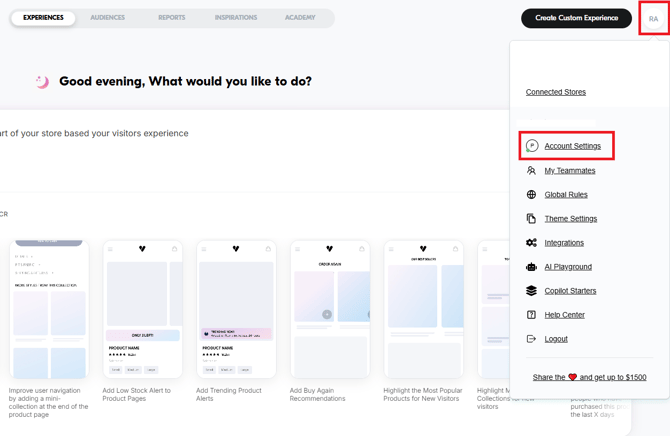
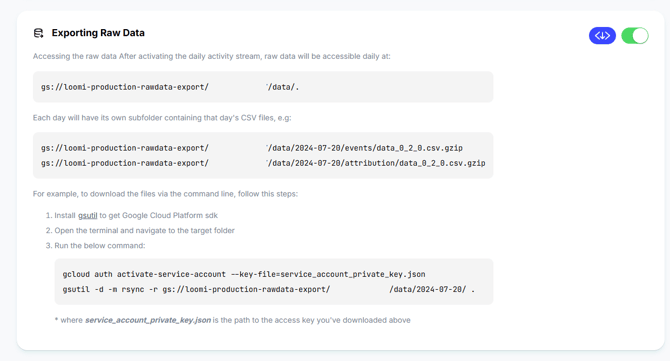
2. Scroll down until you reach the Exporting Raw Data section.
Before You Begin
Before accessing your raw data, make sure you have:
- Activated the daily activity stream for your account.
- A Google Cloud service account key (
service_account_private_key.json). - The Google Cloud SDK installed (includes both
gcloudandgsutil).
Accessing Your Raw Data
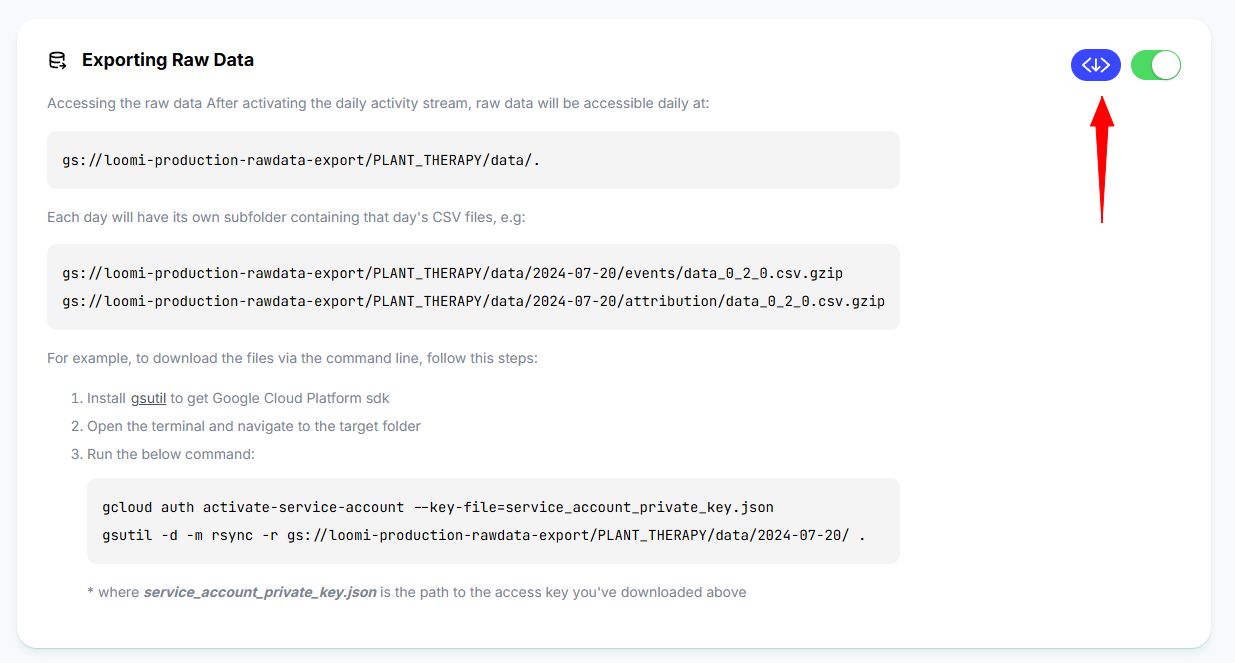
After the daily activity stream has been activated, your raw data will be accessible daily at:
gs://loomi-production-rawdata-export/STORE_NAME/data/Each day's export is stored in its own date-based folder:
gs://loomi-production-rawdata-export/STORE_NAME/data/YYYY-MM-DD/Within each date folder, you'll find the following directories:
events/attribution/
Example files:
gs://loomi-production-rawdata-export/STORE_NAME/data/2024-07-20/events/data_0_2_0.csv.gzip

gs://loomi-production-rawdata-export/STORE_NAME/data/2024-07-20/attribution/data_0_2_0.csv.gzip
Downloading Your Data
To download the files from the command line:
Step 1: Install the Google Cloud SDK
Install the Google Cloud SDK, which includes both gcloud and gsutil.
Step 2: Open the Terminal
Open the terminal and navigate to the directory where you'd like to download the exported files.
Step 3: Authenticate
Authenticate using your Google Cloud service account key:
gcloud auth activate-service-account --key-file=service_account_private_key.json
service_account_private_key.jsonis the path to the service account key you downloaded.
Step 4: Download the Export
Run the following command to download the export for a specific date:
gsutil -d -m rsync -r gs://loomi-production-rawdata-export/STORE_NAME/data/2024-07-20/ .Replace 2024-07-20 with the date you want to download.
Notes
- Raw data is exported daily.
- Each day's export is stored in a separate date-based folder.
- Exported files are provided as compressed (
.csv.gzip) CSV files.
For further assistance or questions, reach out on the chat support widget or via support@visually.io.