
Why is this necessary?
A Shopify draft theme being served to a portion of visitors through a Market Rollout is still a draft theme from Visually's perspective. It is not treated as the store's published theme.
Without additional targeting, Visually will always apply the Experience to whichever theme is loaded for the visitor, including the store's main published theme.
If you want the Experience to only appear when the draft theme is being served, you should explicitly target that theme using its Shopify Theme ID.
Recommended Setup
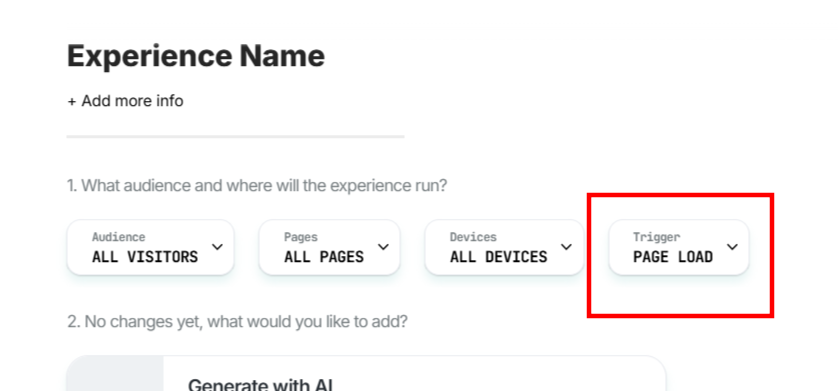
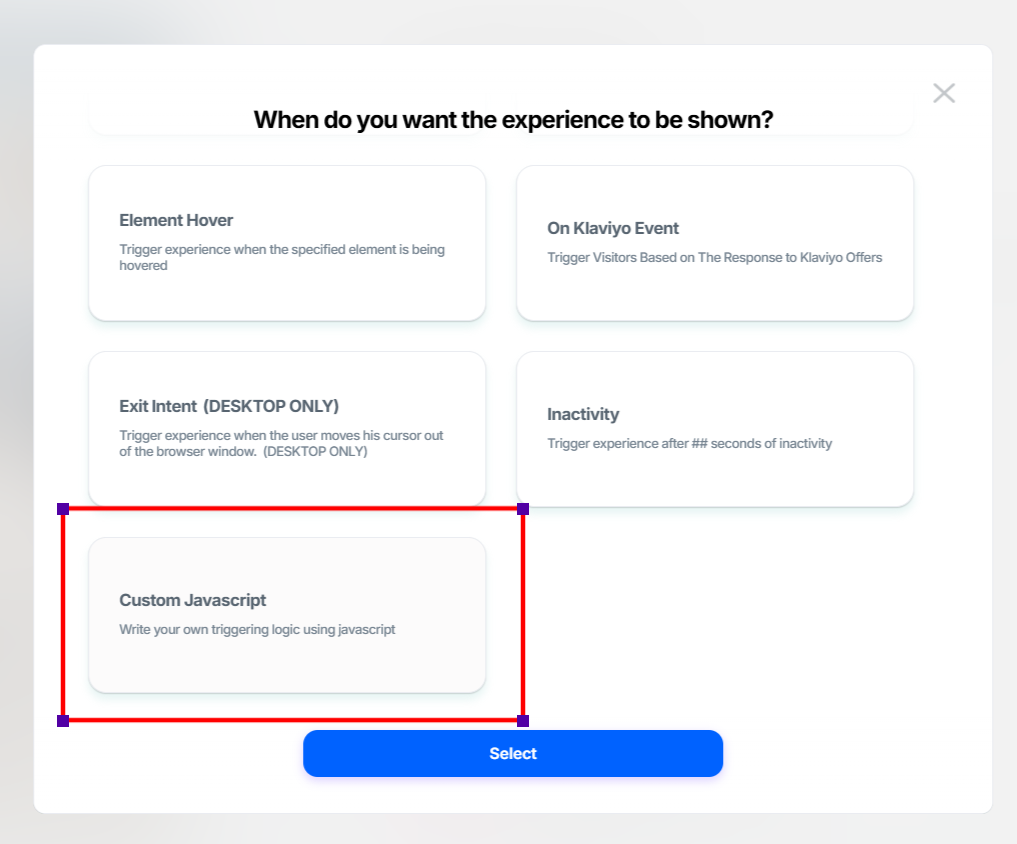
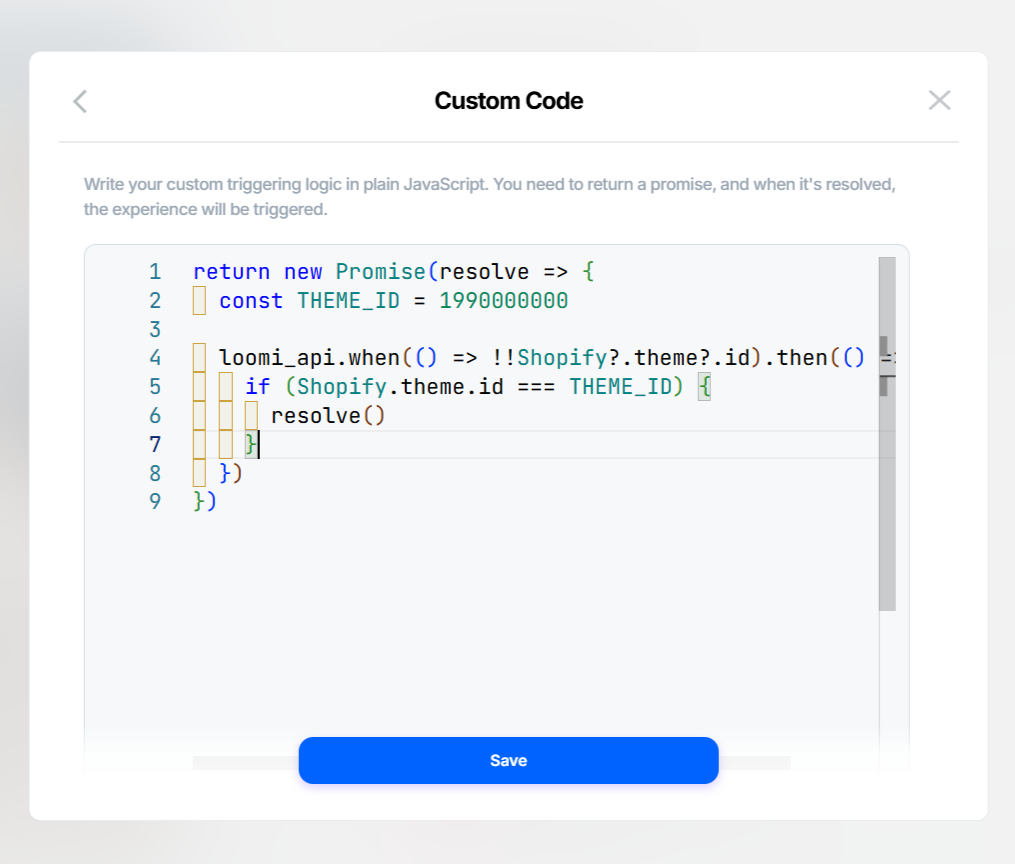
If you want the Experience to trigger when the draft theme is served to the user, use a custom trigger that checks the Shopify Theme ID.
For example:
return new Promise(resolve => {
  const THEME_ID = 1990000000

  loomi_api.when(() => !!Shopify?.theme?.id).then(() => {
    if (Shopify.theme.id === THEME_ID) {
      resolve()
    }
  })
})
Replace 1990000000 with the Shopify Theme ID of the draft theme you want to target.
Example Use Case
You have:
- Main Published Theme: Theme A
- Draft/Test Theme: Theme B
- Shopify Market Rollout: 50% of visitors receive Theme A and 50% receive Theme B
- Visually Experience: Should only appear on Theme B
In this case, the Experience should use a custom trigger checking the Theme B ID.
Visitors receiving Theme A → Experience does not trigger
Visitors receiving Theme B → Experience triggers
Important Consideration
When a Shopify draft theme is included in a Market Rollout, it is still treated as a draft theme being tested alongside the main live theme, rather than as the store's published theme.
If you specifically want the Experience to run on a draft theme that is being served to users as part of a Shopify theme test, theme-specific targeting should be explicitly configured using the draft theme's Shopify Theme ID.
This allows the Experience to trigger only when that specific draft theme is loaded.
| Setup | Expected Behavior |
|---|---|
| Experience without theme-specific targeting (default creation of new Experiences) | The Experience will always apply to whichever theme is live |
| Experience with a custom Theme ID trigger | Triggers only when the specified theme is loaded |
| Shopify draft theme used in a Market Rollout | Can be specifically targeted by Visually using its Theme ID |
Key Takeaway
If you're running a Shopify Market Rollout or similar theme test where a draft theme is being served to a portion of visitors, you can still show a Visually Experience specifically on that draft theme and preview the link to check that it appears as expected.
To do this, configure the Experience with a custom trigger based on the draft theme's Shopify Theme ID.
For further assistance or questions, reach out on the chat support widget or via support@visually.io.