
When using Track Element or Custom Element goals, it's important to verify that the event is firing correctly. This guide will walk you through how to quickly validate that your event is working as expected.
Step 1: Open the Experience
You can test the event from any of the following:
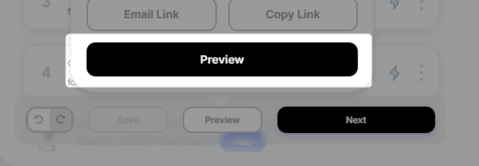
- The Preview Link of the experience
- The Preview button inside the editor
- The live site (if the experience has already been published)
This ensures that you're viewing the page with the experience and tracking logic applied.
Step 2: Open Your Browser Console
Once the page has loaded:
- Open your browser's Developer Tools (Chrome / Edge: F12 or Ctrl + Shift + I (Cmd + Option + I on Mac)
- Navigate to the Console tab
- Clear any existing messages. Clearing the console makes it easier to identify new events generated during testing.
Step 3: Trigger the Tracked Element
Interact with the element configured in your setup to trigger the tracked element (clicking a button, selecting a product option, opening a modal etc.)
Step 4: Verify the Event in the Console
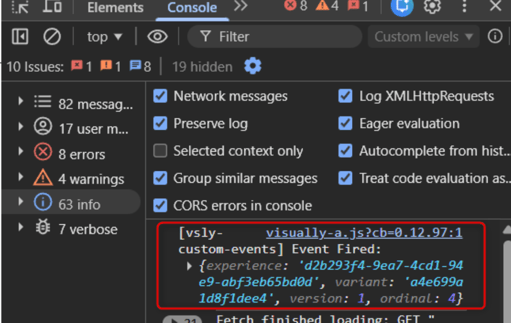
Search for a console event containing: vsly custom events
If you see this event appear after interacting with the element, the tracking is firing successfully.
Step 5: Verify the Experience ID
As an extra validation step, we recommend checking the event details in the console match the correct experience. The value shown after the experience should match the Experience ID of the experience you're testing.
Example:
If your experience URL is: https://visually.io/editor/?expId=d2b293f4-9ea7-4cd1-94e9-abf3eb65bd0d
Then the event should contain: experience: d2b293f4-9ea7-4cd1-94e9-abf3eb65bd0d
This confirms that the event is being attributed to the correct experience.
Having Trouble?
We’ve got your back.
Email us at support@visually.io or reach out on chat for help with setup or troubleshooting.