
Before you begin
Make sure your store uses Klaviyo Advanced KDP and that you have the relevant Klaviyo segment or list ID.
Step 1: Get your Klaviyo segment or list ID
In Klaviyo, locate the segment or list you want to use for targeting and copy its ID.
Step 2: Create a custom trigger in Visually
Open the Visually Experience you want to target and click Trigger.
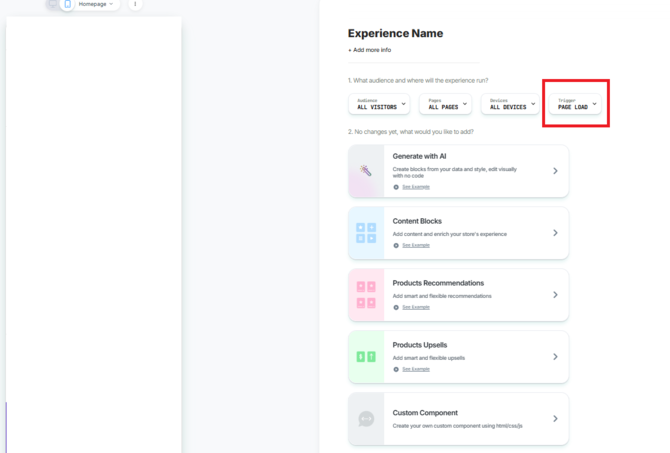
In the pop-up, scroll down until you see Custom Javascript.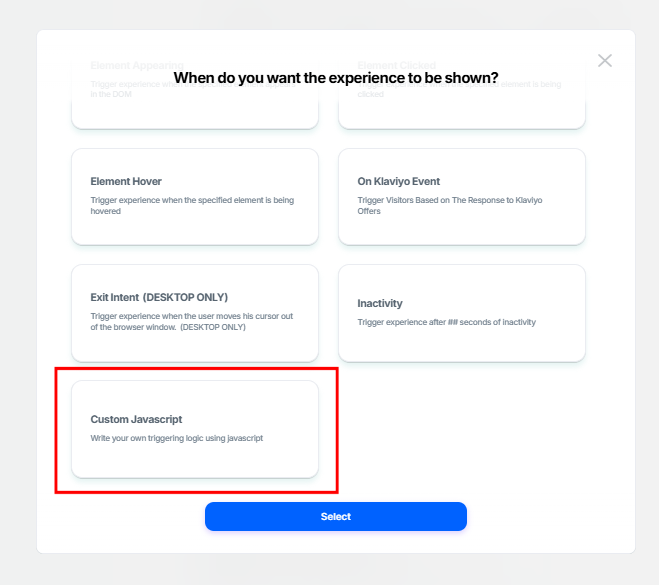
Remove the default sample code and paste the following:
return new Promise(resolve => {
const SEGMENT_IDS = ["PASTE_YOUR_ID_HERE"];
loomi_api.when(() => window?.klaviyo?.getGroupMembership).then(() => {
window.klaviyo.getGroupMembership(SEGMENT_IDS).then((memberOfGroups) => {
if (memberOfGroups?.length > 0) {
resolve();
}
});
});
});
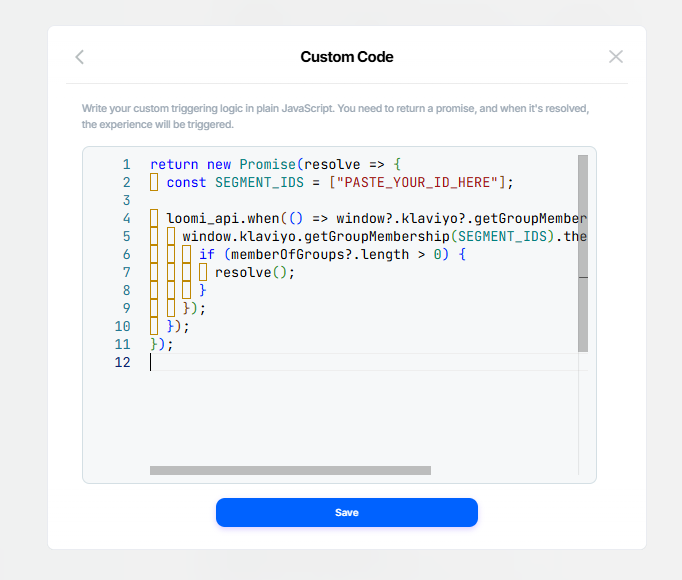
Step 3: Add your Klaviyo segment or list ID
Replace "PASTE_YOUR_ID_HERE" in the SEGMENT_IDS array with your Klaviyo list or segment ID.
If you want to target multiple lists or segments, add each ID as a separate string in the array, separated by commas. For example:
const SEGMENT_IDS = [
"YOUR_FIRST_ID",
"YOUR_SECOND_ID",
"YOUR_THIRD_ID"
];
Keep the rest of the code unchanged.
The trigger will resolve when the visitor belongs to at least one of the specified lists or segments.
Step 4: Save and publish
Save your custom trigger and publish the Experience.
The Experience can then run when the visitor meets the specified Klaviyo list or segment membership condition.
Note: This setup requires Klaviyo Advanced KDP and relies on Klaviyo's getGroupMembership API being available on the page.
Having Trouble?
We’ve got your back.
Email us at support@visually.io or reach out on chat for help with setup or troubleshooting.