
The Visually MCP (Model Context Protocol) server allows AI assistants that support MCP (such as Claude Desktop, ChatGPT Desktop and Gemini CLI) to securely access your experimentation data.
This is the first release of our MCP integration and provides read-only access to your experiments and performance data. We'll continue expanding its capabilities over time.
What you can do today
The current MCP server supports:
- Listing all experiences in your account
- Searching for specific experiences
- Filtering experiences
- Retrieving experiment performance data
- Viewing daily metrics for each variation within an experiment
This makes it easy to ask your AI assistant questions such as:
- Show me all currently running experiments.
- Find experiments related to checkout.
- List paused experiences.
- Show me the daily performance for Experiment X.
- Compare the variations in my latest homepage test.
Understanding the current limitations
This is an early version of the MCP server with access to your aggregated experiment data.
Your AI assistant receives the underlying metrics but does not automatically understand how Visually interprets those metrics. As a result, some complex analytical questions may produce inaccurate or inconsistent answers.
For example, asking:
"Which experiment generated the most revenue?"
requires the AI assistant to retrieve data, perform calculations, compare results across experiments, and correctly interpret the metrics. Depending on the AI client being used, this may lead to incorrect calculations or conclusions.
Similarly, the current MCP response does not include some insights that are calculated within the Visually application, including:
- Experiment uplift
- Statistical significance
- Confidence calculations
- Minimum sample size recommendations
- Other derived metrics shown in the Visually dashboard
For the most accurate interpretation of experiment results, we recommend verifying important decisions in the Visually dashboard.
How to set up the Visually MCP Server
Before you begin, make sure you have:
- An active Visually account
- An AI client that supports MCP (Claude Desktop, ChatGPT Desktop and Gemini CLI)
- Your Visually API credentials (if required)
Step 1: Enable MCP in Visually
- Log in to your Visually account.
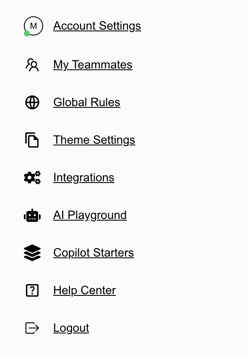
- Navigate to Account Settings and scroll to API Keys & MCP Access
- Follow the instructions on screen to complete the configuration.

Best practices
The MCP server works best for:
- Finding experiments
- Retrieving experiment data
- Exploring historical results
- Supplying experiment data to AI for summarization
For complex statistical analysis or determining experiment winners, continue using the Visually application as the source of truth.
What's coming next
We're actively expanding the MCP server and plan to add richer capabilities over time, including:
- Additional tools and endpoints
- More complete experiment metadata
- Derived metrics such as uplift and statistical significance
- Better AI guidance for interpreting Visually metrics
As the MCP ecosystem evolves, we'll continue improving the integration to make AI assistants significantly more effective when working with your experimentation data.