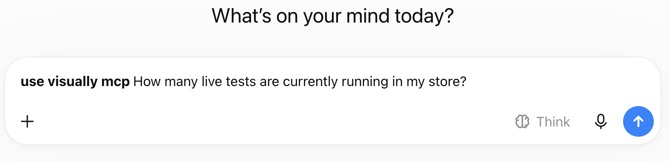
Ask questions about your A/B tests, revenue, and store performance right inside your AI assistant - Claude or ChatGTP.
What is this?
MCP (Model Context Protocol) lets your AI assistant securely connect to your Visually account. Once connected, you can ask questions about your experiments and get answers based on your live store data. Bring your Visually data directly into your AI workflow to analyze results, perform additional calculations, explore follow-up questions, and uncover deeper insights - all without leaving the environment where you work.
What you can ask
See which stores you can access
Useful if you manage multiple stores and want a quick reminder of what's connected.
"List the shops I have access to"
Check how your active tests are performing
Get a live snapshot of your running experiments — conversion rate, average order value, per-session value, and which variant is currently ahead.
"List all tests that have reached statistical significance"
"How are my active tests doing?"
"Give me a performance overview for [store name]"
Pull revenue and traffic numbers
See the bigger picture — total revenue Visually has added, assisted revenue, orders, and session counts, for any time period.
"How much revenue has Visually added this month?"
"How many orders came through variants vs the control on [test name]?"
"Compare added revenue for August vs July"
See your audience segments
Check which audience segments exist for a store, and how many experiences are targeting each one.
""What audiences are set up in my store?"
"How many tests are targeting mobile users?"
Find a specific test
Search by name, status, or label — handy when you know roughly what you're looking for but don't want to scroll through every experiment.
"Find all my live A/B tests"
"Show me paused tests"
"Search for any test with 'homepage' in the name"
A few tips
- Ask your AI assistant about your goals or the insights you're looking for and it'll guide you - "What should I ask to find out how my tests are performing?"
- Be specific. "Show me KPIs for July" works better than "show me my stats."
- If a question doesn't return what you expect try rephrasing it.
- Name your store if you manage more than one.
- No data yet? New or draft tests may not have enough traffic for results yet - you'll be notified if that's the case.
- If something looks wrong with your data itself, reach out to Visually support directly.
How to connect Your AI Assistant
CLAUDE
1. Open Settings and select Connectors, then Add custom connector.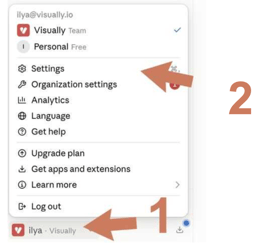
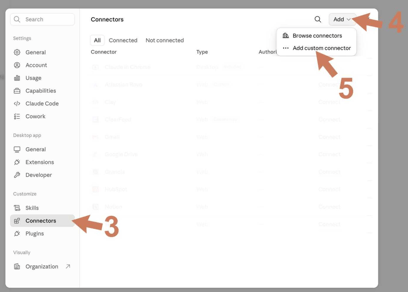
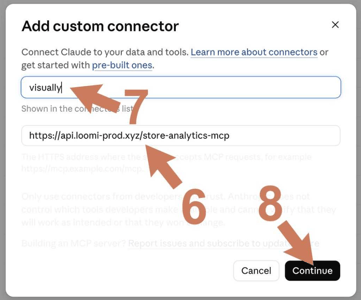
2. Give the connector a name - "Visually", copy and paste this link into the connector URL
then, Continue.
3. Set parameters for the connector:
Authentication: Always required.
OAuth client: No client ID - register one automaticallly.
Then, Add.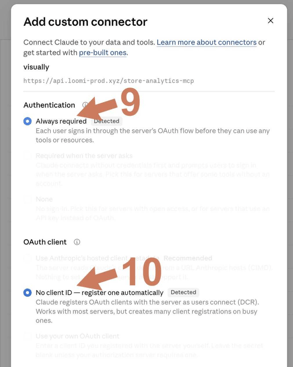
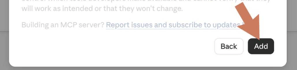
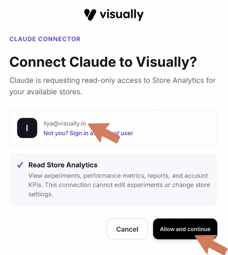
4. Click “Connect,” make sure you’re using the email address associated with your Visually account, then click “Allow and continue.”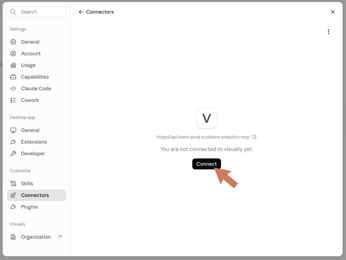 .
. 
5. To start using Visually MCP, type “use visually mcp” once in each new chat, then start asking your questions.

CHATGPT
1. Open Settings, go to Security and login and turn Developer mode on.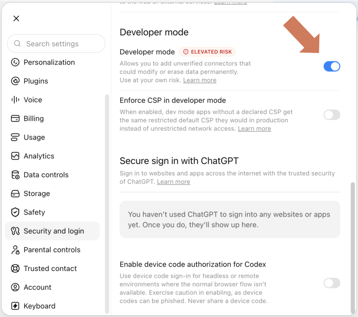
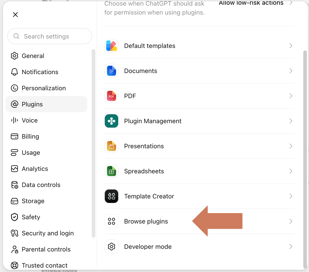
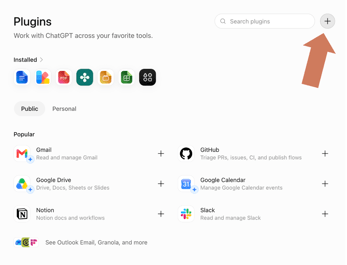
2. Go to Plugins, click Browse plugins, then click the "+" in the top-right corner to Add a new plugin.
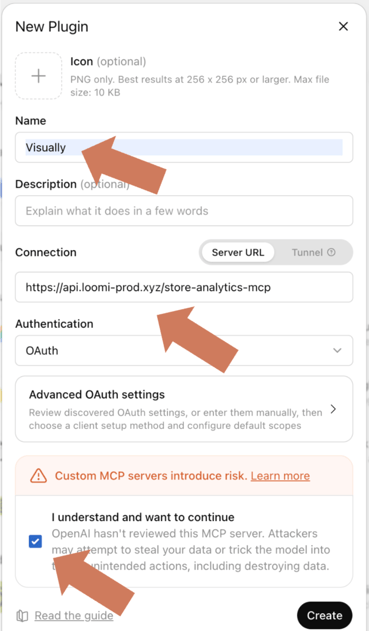
3. Enter “Visually” in Name, then under Connection enter the following as the Server URL:
https://api.loomi-prod.xyz/store-analytics-mcp
Finally, check the “I understand and I want to continue” box, then click Create.
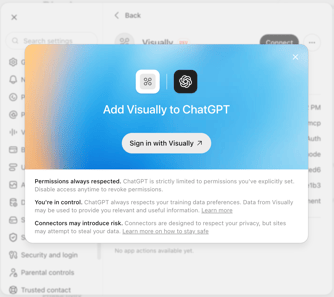
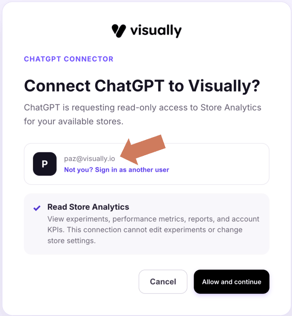
4. Click “Sign in with Visually”, then make sure you’re using the email address associated with your Visually account, and click “Allow and continue.”
 .
. 
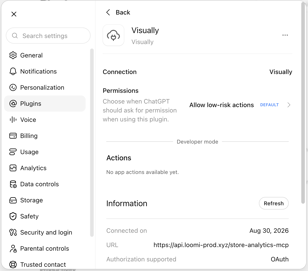
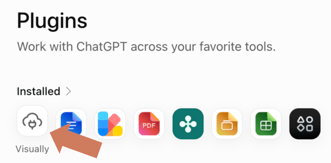
5. You should now see Visually listed as a connected plugin.
6. To start using Visually MCP, type “use visually mcp” once in each new chat, then start asking your questions.