
To add additional features to the checkout page in Shopify, you need to specify where those features should appear. This is done by defining specific areas in the theme checkout editor.
Here's how to do so:
Access the Checkout Editor
-
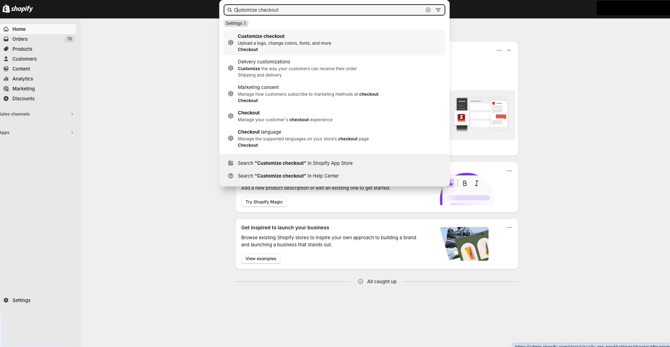
In your Shopify admin, go to Settings → Checkout.
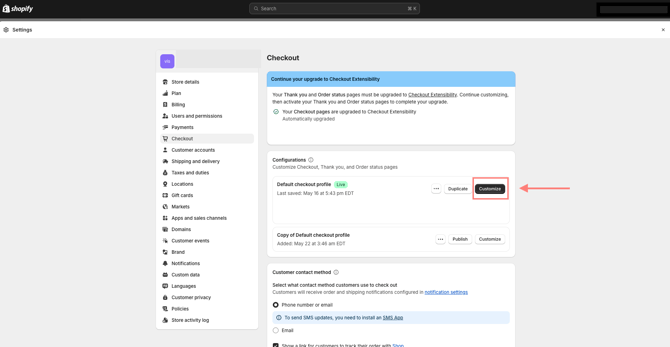
- Click Customize on your live checkout.
Add a Checkout Block
-
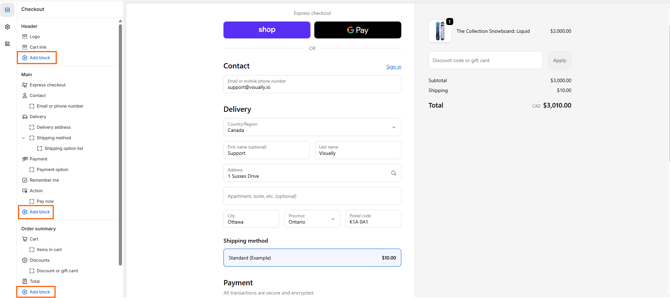
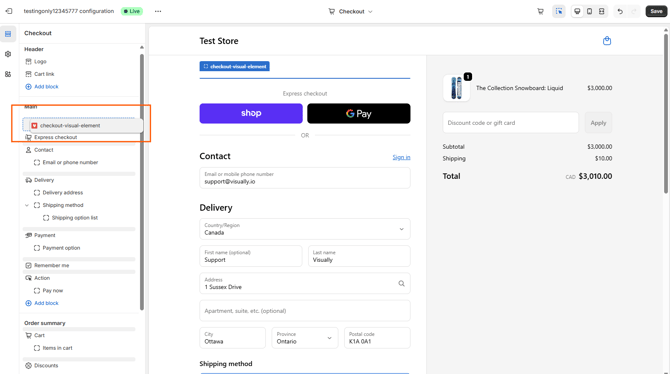
In the Checkout Editor, click + Add app block in the section where you want the new block to appear.
-
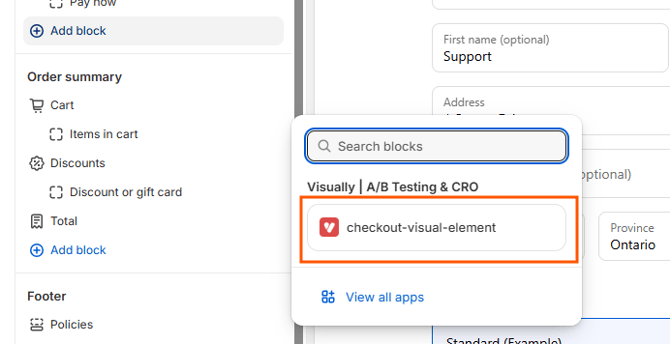
Select the Visually app block.
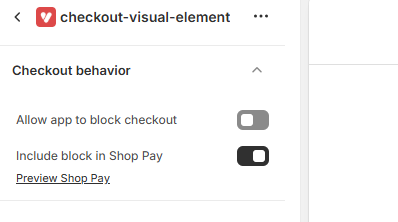
- Click on the Checkout Behavior section and ake sure these checkboxes are set correctly:
- Enable on ShopPay → ON
- Allow to block checkout → OFF
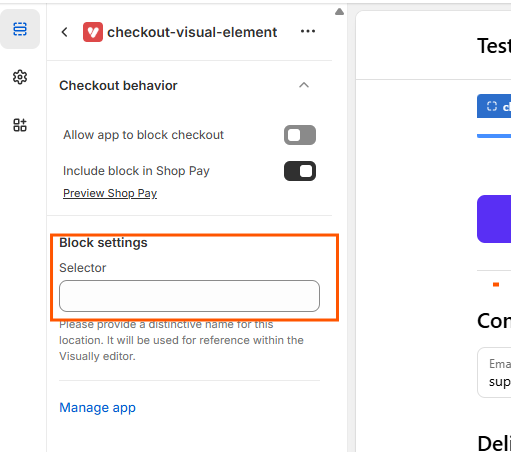
- In the Selector section on the left, enter a unique name for the block. This will help you identify it if you add multiple blocks.
-
Click the back icon when ready.
-
Drag and drop the block to your preferred location if needed.
-
To add more blocks, repeat the steps 1-4.
- Once you’ve added blocks to all desired sections, click Save in the top right corner.
Using Visually alongside other checkout apps
Visually can be used alongside other apps in Shopify Checkout, provided that each app controls a different checkout block or placement.
Shopify supports multiple checkout apps on the same store, but only one app can manage a specific checkout block position at a time. As a result, while different apps can coexist in separate placements, they cannot both control or split-test the same checkout block due to this Shopify limitation.
If a checkout block isn't appearing as expected, temporarily disable any other app assigned to the same placement and verify whether the Visually checkout block displays correctly. This can help determine whether another app is conflicting with that checkout position.
To start customizing the checkout page further, check out the full help article: Customize the New Checkout Extensibility.
IMPORTANT INFO
- Only Shopify Plus accounts have the ability to edit the checkout section due to limitations with Shopify.
- For multi-step checkout - currently we support adding blocks and customizing only the information page. The option of editing additional checkout pages will be added to our robust features in the near future.
-
Each change is targeting a specific device. The device can be changed by switching the Quick Preview device on the top left side of the screen using the device icon and creating the desired change on the relevant device.
Having Trouble?
We’ve got your back. Email us at support@visually.io or reach out on chat for help with setup or troubleshooting.