
Aside from verifying if an element is being correctly tracked when setting up Custom Goals - which you can read about here: How to Verify an Element is Tracking - you can also track Native Events using your browser's Developer Tools.
This is incredibly useful for confirming that actions like Add to Cart or Started Checkout, are firing cleanly alongside your optimizations.
Here is the exact workflow to verify these native events during your QA process:
- Open Developer Tools: Right-click anywhere on the page and select Inspect, or press
F12(Cmd + Option + Ion Mac), then switch over to the Network tab at the top of the panel.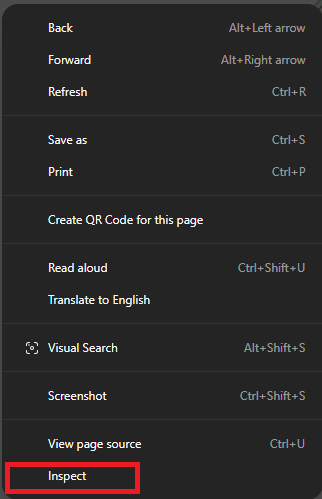

- Trigger the Event: Perform the action you want to test on the live storefront - such as clicking the "Add to cart" button or proceeding to the checkout page.
- Filter for the API Endpoint: In the Network tab's search/filter box, type
api/sto isolate the background data streams. Look for the API calls appearing in the list as you interact with the site.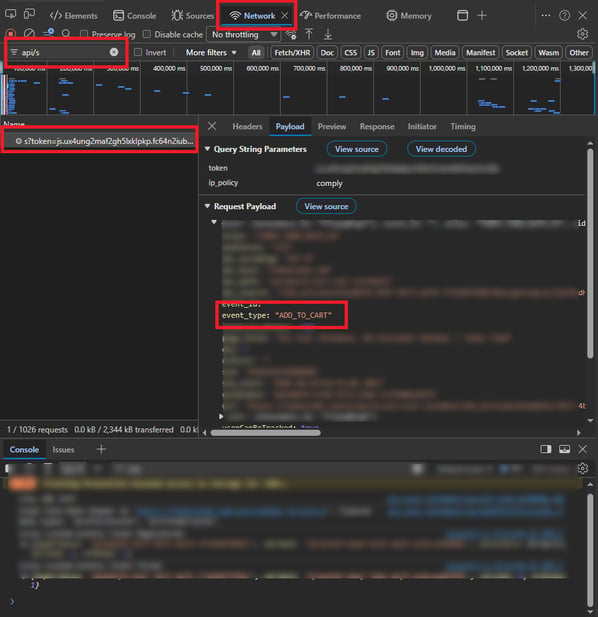
- Inspect the Request Body: Click on the relevant API request and open its Payload (or Request Body) tab. Look closely for the
EVENT_TYPEkey within the payload structure to confirm that the exact action (e.g., Add to Cart) was successfully captured and passed along.